
Connecting your wallet
Running into issues? Some tricks!
There are a number of places where you might get stuck staking. This guide aims to be a comprehensive list with troubleshooting. If you are still stuck - ask in the taostats discord .
Wallet extensions
You must have a wallet extension installed in your browser to make transactions in taostats. Make sure the extension is up to date.
Desktop
Screenshots for Bittensor wallet and polkadot will be shown.
Mobile
Nova browser is a popular choice.
Add your wallet address.
Add your wallet address (begins with a 5) to the wallet extension. If you have an existing Bittensor wallet, you will need your 12 word mnemonic here.
Polkadot
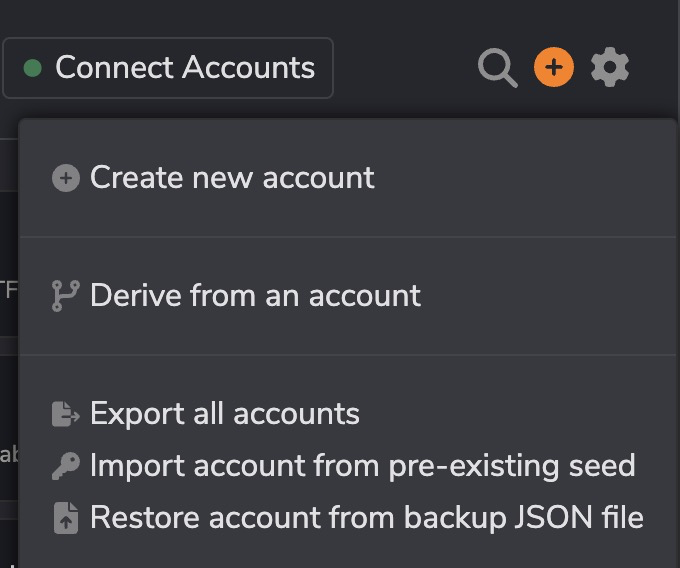
Bittensor Wallet
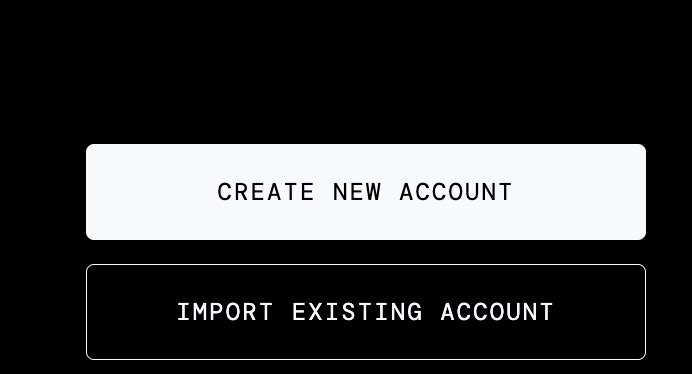
Wallet not connecting
Reset taostats settings in chrome:
-
click the menu to the left of the URL, and choose "Site Settings.
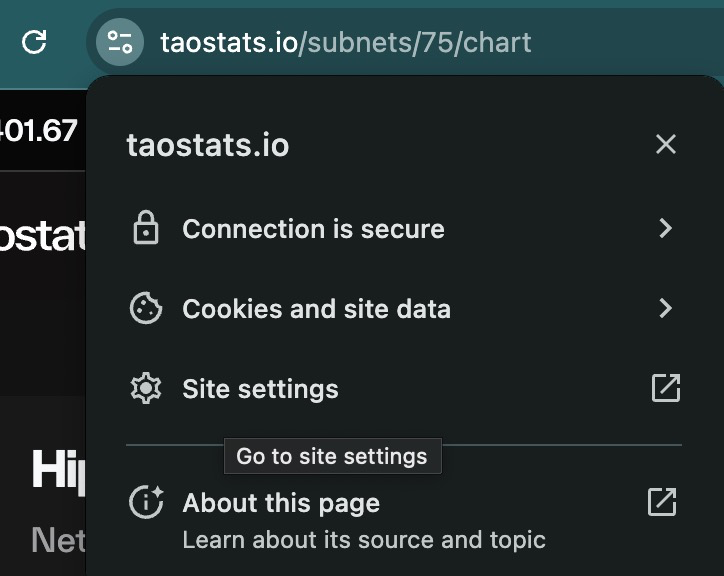
-
Delete cookies
remove wallet and re-add
This is the turn it off and turn it back on again fix.
- In your wallet app:

- Remove the website by clicking the trash can:
-
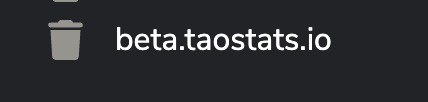
- Reconnect your wallet to the website.
Multiple wallet extensions
Try disabling other wallet extensions on case there is a conflict.
Ensure wallet has permission to connect
Your wallet shows that there is permission to connect, but it is not connecting
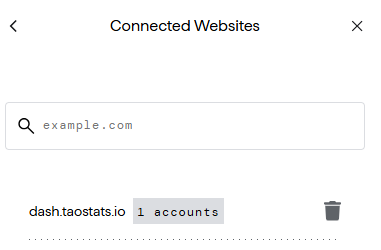
If there is a white circle around the extension:

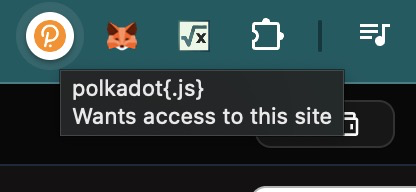
Click the extension:
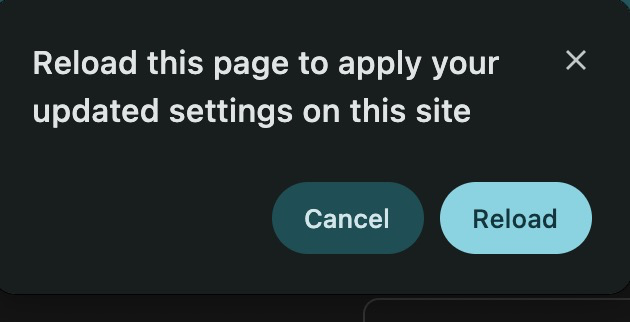
On reload, the white circle is gone, and your wallet has access to interact with the page
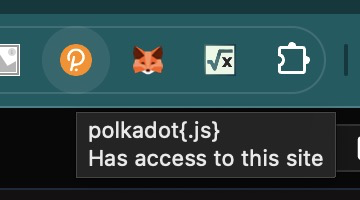

You can now connect your wallet.
Error on the staking page
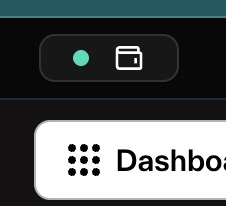
The green dot un the upper right corner shows that your wallet is connected. if it is red - click to reconnect your wallet.
Staking errors
If you receive an error message - refer to the Bittensor documentation for details.
Updated 20 days ago